

Prerequisites
- Codex Desktop installed
- One completed official ChatGPT or Codex sign-in in the desktop app
- A Flatkey API key — create one in the Flatkey Console
- A supported model ID from the Flatkey Model Directory
- CC Switch, if you use the CC Switch setup
Manual configuration
1. Set the API key
Store the key in a user environment variable instead of writing it into a configuration file.2. Update config.toml
Open the user-level Codex configuration file:
Before replacing the top-level
model and model_provider settings, record their current values so you can restore them later. Then update both settings. If either key already exists, replace its value instead of appending a duplicate key. Preserve all unrelated settings. Add the provider table below; if [model_providers.flatkey] already exists, update that table instead of creating a duplicate:
gpt-5.4 is available in the Flatkey Model Directory at the time of writing. Check the directory before switching to a different model ID.
3. Restart and verify
Fully quit Codex Desktop, reopen it, and send a small prompt. Open Flatkey Usage Logs and confirm the model, token counts, latency, and cost.Configure with CC Switch
CC Switch is a third-party configuration manager, not a Flatkey product. You can also download it from the CC Switch GitHub repository. The steps below follow the current CC Switch interface. Manual configuration and CC Switch are alternative setup methods. Use one method for the active provider. Codex Desktop and Codex CLI share~/.codex/config.toml on macOS and Linux, or %USERPROFILE%\.codex\config.toml on Windows. CC Switch controls the model and provider settings in that shared file. Preserve unrelated settings and providers.
1. Complete one official sign-in
Open Codex Desktop and complete an official ChatGPT or Codex sign-in before switching providers. Do this at least once so the desktop app has a valid official session for account access and its model catalog. The official credentials are stored inauth.json or your operating system’s credential store. Treat both as sensitive.
2. Preserve the official login for direct switches
In CC Switch, open Settings > General > Codex App Enhancements, then enable Keep official login for direct switches. The setting prevents a direct provider switch from discarding the official login that Codex Desktop still needs.
3. Add Flatkey as a custom provider
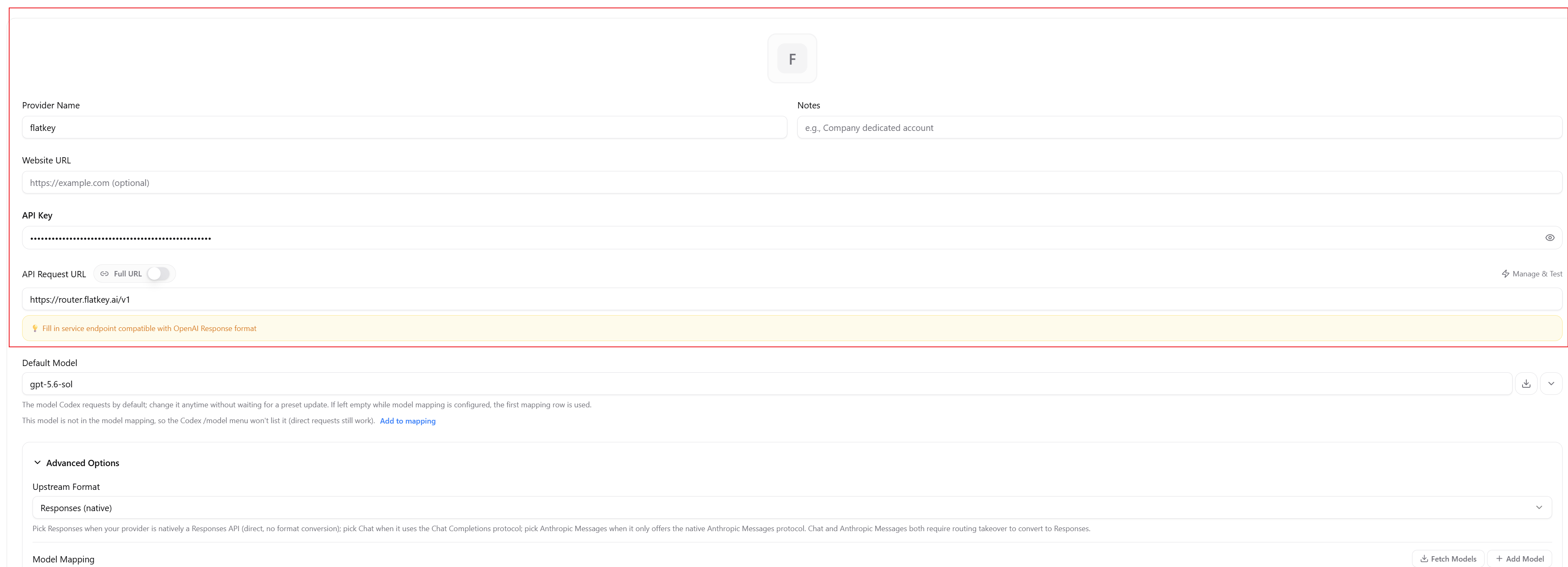
Open the Codex panel in CC Switch and add a Custom Provider. Use the following values. This tutorial does not rely on a built-in Flatkey provider.
4. Configure the model
Set the provider’s Default Model to the exact Flatkey model ID you want to use. The screenshot showsgpt-5.6-sol as an example. Check the Flatkey Model Directory before choosing an ID.
Click Fetch Models to load current IDs. Add the model to the provider’s Model Mapping when you want it in the Codex /model menu. You can also set an exact ID as the provider’s Default Model or pass it from Codex CLI with codex --model <id>. For Codex Desktop, treat the active provider and default model as the intended route even if the picker does not list the custom model. Confirm the actual route with Flatkey Usage Logs after sending a request.

5. Save, activate, and restart
Save the custom provider and activate it for Codex. Do not remove unrelated settings or providers from the sharedconfig.toml.

6. Verify the actual route
Start a new conversation with a small context and send a minimal prompt. Then open Flatkey Usage Logs and confirm the model, token counts, latency, and cost for that request.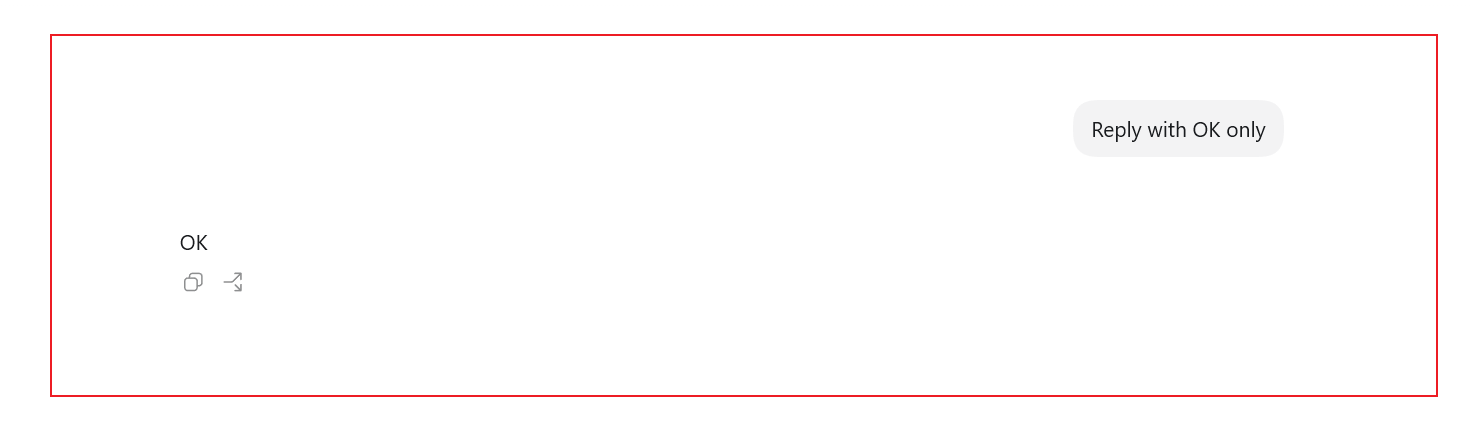
config.toml control the route. Flatkey Usage Logs are the authoritative confirmation that the request reached Flatkey.
System prompts, tools, conversation history, attached files, and command output can increase input tokens beyond the text in your visible prompt. Higher input token counts can increase billed cost.
If the model is not visible
Codex Desktop may show the official model catalog and omit a custom model from its picker. A missing custom model in the UI does not prove that routing failed.- Confirm the official ChatGPT or Codex login is still active.
- Confirm Settings > General > Codex App Enhancements > Keep official login for direct switches is enabled.
- Confirm the Flatkey provider is active and its Default Model contains the exact model ID.
- Check the provider’s model mapping. Use Fetch Models when you want the model in the
/modelmenu. - Confirm the shared
config.tomlcontains the intended active provider and model without changing unrelated settings. - Fully quit every Codex Desktop process and reopen the app.
- Send a minimal prompt and check Flatkey Usage Logs for the actual route.
Switch back to the official provider
If you used CC Switch, activate the official Codex provider. Fully quit Codex Desktop, make sure no old process remains, and reopen it. You do not need to delete the Flatkey custom provider. If you used manual configuration, restore the previous top-levelmodel and model_provider values in config.toml. Preserve unrelated settings and provider tables. Leave the official credentials in auth.json or the operating system’s credential store untouched. Fully quit Codex Desktop, make sure no old process remains, and reopen it.